
Turn Your Child's Drawing into an AI Animation
Published May 2026 · 8 min read
In this guide
If you have ever sat with your child after they finished a drawing and thought, "I wish this could move," you are not alone. Parents have been searching for ways to turn drawings into animation for years — sometimes by hiring an illustrator, sometimes by learning Adobe After Effects, more often by just taking a photo and moving on. AI has changed what is possible. Today, a five-year-old's pencil sketch can become a short animated clip in under a minute, in a browser, with a free trial.
This guide explains what it actually means to turn a drawing into animation with AI, what a good tool should and should not do to your child's art, and how to make your first animation today. We will compare drawing-to-animation tools with general image-to-video apps, walk through the steps end to end, and answer the questions parents most often ask before trying it for the first time. For the short version, our product page Animate your child's drawing with AI shows the 4-step flow with live examples.
Animate a Drawing Without Replacing It
The most important thing to understand about apps that turn drawings into animations is what they do to the original drawing. There is a wide gap between two kinds of tools that look similar on the surface:
- Drawing-to-animation tools use the child's drawing as the actual visual foundation. The AI analyzes the shapes, characters, and composition, then animates them — the dragon your child drew is the dragon that moves on screen.
- Image-to-video generators often treat the input as inspiration only. The AI reads the drawing, generates a brand-new, polished version, and animates that. Your child's wobbly stick figure becomes a Pixar-style character that has nothing to do with what they actually drew.
For a kids' product, the second approach is the wrong one. The whole point of animating a child's drawing is to make the child feel like an artist whose work has come alive. If the AI replaces the drawing with something more "professional-looking," the magic disappears — and so does the child's sense of ownership over the result. KidsAI is built around the first approach: the source drawing is treated as visual ground truth, and the AI's job is to add motion, not to redraw.
How to Turn Drawings into Animation
Here is the full step-by-step for how to turn your child's drawing into animation using KidsAI. It runs in any modern browser, so there is nothing to install on your phone or laptop.
- Take a clear photo of the drawing — Use your phone in good light. Lay the drawing flat, avoid shadows, and crop tightly so the drawing fills the frame. JPEG or PNG up to about 8MB works.
- Open KidsAI in video mode — Go to kidsai.art/studio.html?mode=video. The studio opens directly into the animation interface — no menu hunting.
- Upload and pick a motion style — Drag the photo in or tap to upload. KidsAI offers motion presets like gentle drift (the whole scene breathes), character action (the subject performs a small action), and atmospheric (background elements move, characters stay still). Pick one that matches the drawing's mood.
- Generate and share — Click Animate. The AI takes 30 to 60 seconds to produce a 6 to 10 second video. Preview it, then download the MP4 to share in the family group chat or save to the camera roll.
Switch to Animate mode
Open the studio in video mode — the Animate tab is already selected and the upload area is empty, waiting for your drawing. Nothing to install.

Upload the colored drawing and set it up
Upload the stylized image, then choose the mood, quality, length, and whether to add sound. The estimated credit cost is shown before you commit, so there are no surprises.

Generate the video
Tap Generate Video and a progress state shows the AI animating the drawing. Most clips finish in about 30 to 60 seconds.

Download or create another animation
When the clip is ready you can preview it, download the MP4 to share, or send another drawing through the same flow.

First-time visitors get 10 free credits on signup with no credit card — a video costs 5–22 credits depending on length and resolution. That is enough for several sessions of experimenting before you know whether AI animation works for your child's drawing style.
Ready to try? Open the studio and animate a drawing in under a minute.
Animate a DrawingWhat Types of Drawings Work Best?
Not every drawing is equally easy for AI to animate. After watching thousands of generations across KidsAI, a few patterns are clear about what types of drawings turn into the best animations:
- Pencil sketches with clear outlines — Strong, continuous line work gives the AI clean edges to follow. Faint or broken lines confuse the model.
- Crayon and marker drawings — Bold strokes and saturated color are easy for the model to interpret. These often produce the most expressive animations.
- Already-colored drawings — Drawings the child has already colored work as well as line sketches. You can animate them directly, or recolor them in KidsAI's image mode first and then animate the colored version.
- Single-subject compositions — One character, one creature, or one vehicle in the frame is easier to animate well than a busy multi-subject scene. If a drawing has many small elements, consider cropping to focus on one.
- Animals, monsters, vehicles, fantasy creatures — These subjects animate beautifully because viewers expect them to move in specific, distinct ways. A dragon flaps its wings; a car rolls. Abstract or static subjects (a still-life of flowers, for example) are harder for the AI to enliven.
Drawings that are very faint, extremely busy, or have unclear subjects sometimes produce surprising results — sometimes wonderfully creative, sometimes not what you expected. If a first animation does not work, the fix is usually simpler than you think: take a cleaner photo, crop tighter, or try a different motion preset on the same drawing.
Stylize Your Drawing First (Optional but Recommended)
Animations look noticeably more polished when the drawing has been stylized first — meaning the raw pencil sketch is run through KidsAI's image-mode coloring tool to add color, depth, and a chosen art style, and only then passed into video mode for animation. Every example shown in this article went through that two-step workflow. Animating a raw pencil sketch directly is possible, but the result tends to look flatter because the input lacks color and contrast — the AI has less material to add motion to.
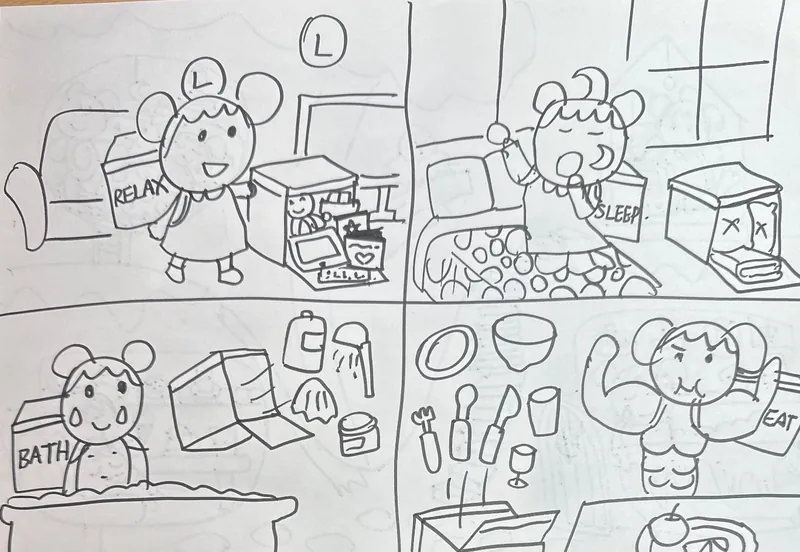
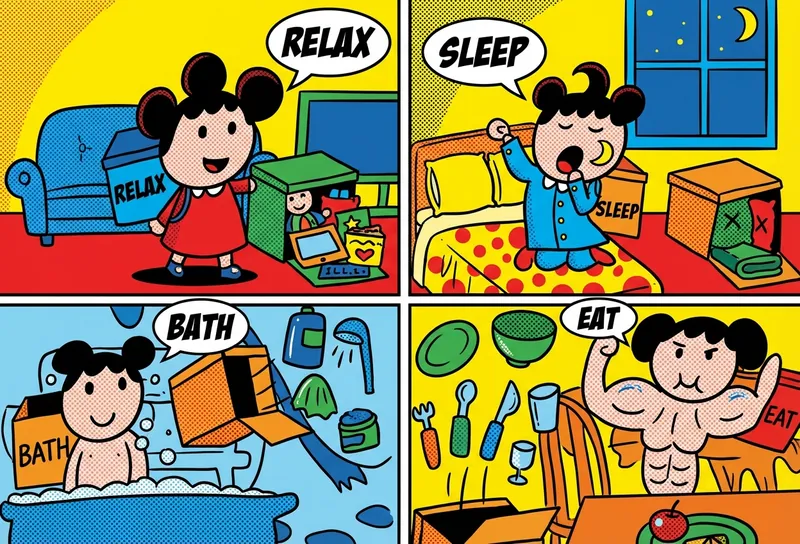
The full recommended workflow looks like this:
- Photograph the raw drawing — clear light, tight crop, JPEG or PNG.
- Open KidsAI in image mode at kidsai.art/studio.html (the default mode). Upload the photo and pick a style — watercolor, crayon, marker, 3D render, colored pencil, playful illustration, comic, and more. The AI takes 20 to 30 seconds. Save the result.
- Switch to video mode at kidsai.art/studio.html?mode=video. Upload the stylized image and pick a motion preset. The AI animates it in 30 to 60 seconds.
For a deeper guide on the image-mode coloring step — what styles work best, how the AI keeps your child's original drawing recognizable, and safety/privacy details — see our parent's guide to AI coloring apps for kids. The same "preserve the drawing, only add output" principle applies to both modes.
Start with the stylize step — color your child's drawing in about 30 seconds.
Stylize a DrawingBefore and After Examples
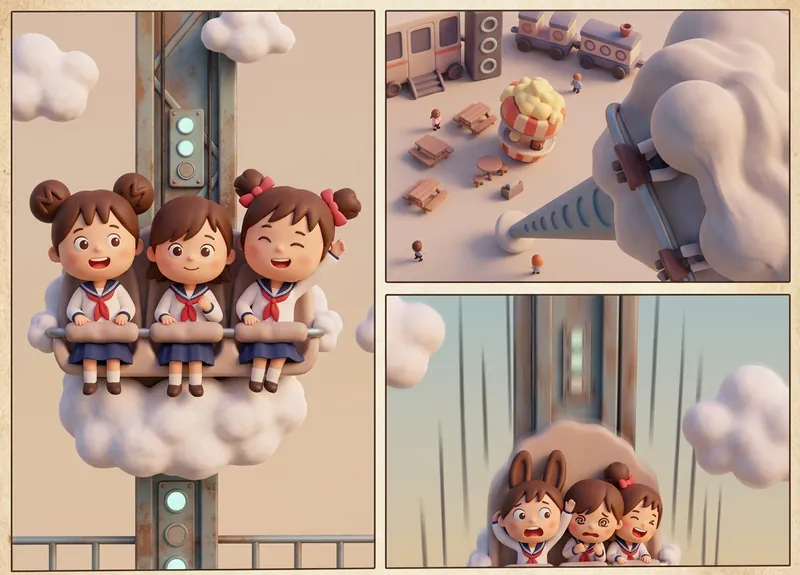
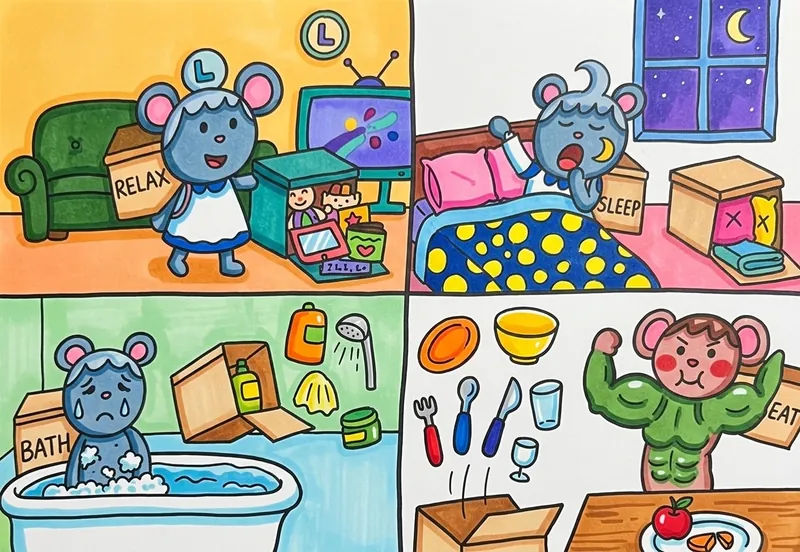
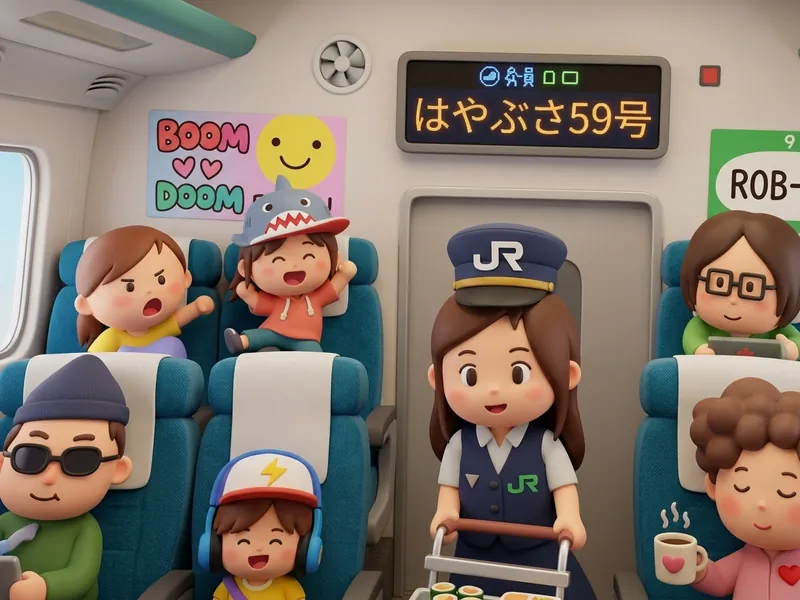
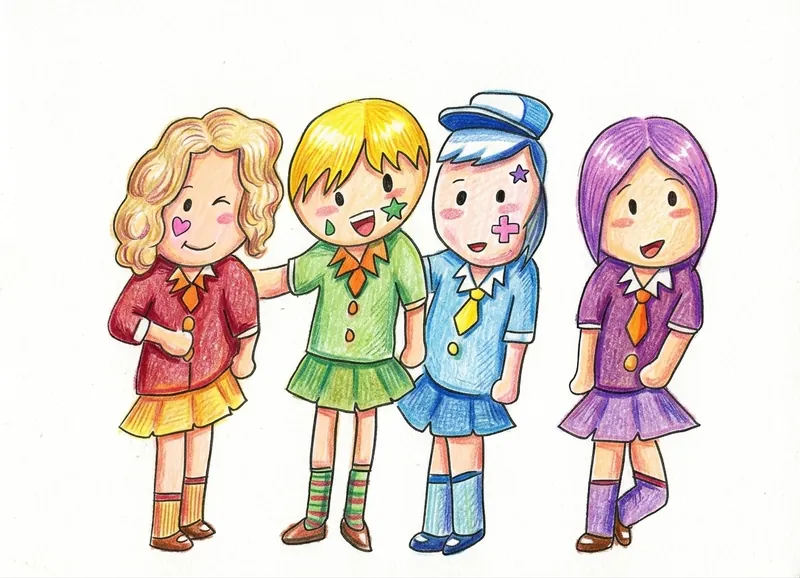
Here are real children's drawings turned into AI animations using KidsAI's video mode. The image on the left is the stylized version (output from the image-mode step described above). The video on the right is what video mode produced from that stylized image. Notice how the composition, characters, and colors stay recognizable in every case — the AI adds motion, not new content.
Why Parents Use KidsAI for Drawing Animation
The Original Drawing Stays Recognizable
KidsAI's video mode is built specifically to preserve the child's artwork. The motion is added on top — the shapes, colors, and character of the drawing remain. Parents tell us this is the difference between a video their child is proud of and one that feels like the AI did the work.
Family-Shareable in Seconds
Output is a 6 or 10 second MP4, the perfect length for a group chat or social share. No editing required, no watermark on the free trial, no awkward aspect ratios — just the kind of video grandparents will actually watch and reply to.
No Editing Skills Needed
You do not need to learn keyframe animation, after-effects timelines, or video editing software. The whole experience is: upload, pick a style, click. A six-year-old can run the whole flow with a parent nearby for the photo step.
Free Trial Credits to Start, No Credit Card
10 free credits on signup — a video costs 5–22 credits depending on length and resolution. That is enough to try the AI animation feature across several different drawings — line sketches, colored drawings, different subjects — before you know whether it is right for your family. Paid plans for families who want more start at $3.99/month; see the pricing page for details.
Browser-Based, No Install
KidsAI runs in any modern browser — Chrome, Safari, Edge, Firefox — on phone, tablet, or laptop. No App Store download, no permissions to grant, no app bloat. The same link works for every device in the house.
Drawing to Animation vs Image-to-Video
If you have looked at general image-to-video apps before, you will notice they sometimes overlap with drawing-to-animation tools. Here is the distinction parents care about:
| Aspect | General Image-to-Video | Drawing-to-Animation (KidsAI) |
|---|---|---|
| Best input | Photos, polished AI-generated images | Hand-drawn sketches, crayon, marker, doodles |
| How the AI treats the input | Often regenerates the image first, then animates the regenerated version | Treats the drawing as visual ground truth; only motion is generated |
| Output style | Photorealistic motion, polished but generic | Animation that preserves the child's artistic style |
| Child's sense of ownership | Low — the result feels like the AI's work | High — the child can point to their drawing and say "I made that move" |
| Family-friendly safety | General-purpose, broad model | Filtered for children's content, no open-ended prompt input |
If you want to animate a vacation photo or a stock image, a general image-to-video app is the right tool. If you want to animate your child's drawing in a way the child will recognize as theirs, look for a tool specifically designed for that purpose. Drawing-to-animation is a narrower, more opinionated category — and that is exactly why it works better for kids' art.
Animated Drawings as a Creative Loop
One of the most interesting things we have seen parents do with AI animation is to use it not as the final output, but as part of a feedback loop with their child. The flow looks like this:
- The child draws something — a creature, a vehicle, a scene.
- You photograph it together and animate it in KidsAI.
- You watch the animation together and talk about what surprised the child — "I didn't know it would walk like that," "I wish its tail moved."
- The child draws a new version inspired by what they saw — maybe with more legs, maybe a different pose, maybe in a different setting.
- You animate the new drawing.
This iterative loop turns animation from a one-shot novelty into a creative tool that teaches children how to observe their own work, refine it, and see ideas come to life. It is the same loop professional illustrators and animators use — just with the friction removed by AI.
If you have also tried KidsAI's image-mode coloring feature — see our parent's guide to AI coloring apps — the same loop works there. Many families color a drawing first, then animate the colored version, ending up with a richer, more polished final clip.
Frequently Asked Questions
Quick answers to the questions parents most often ask before trying AI animation for the first time. Click a question to expand.
Can I turn a pencil drawing into animation?
Yes — pencil sketches are one of the best input types for AI animation. The clean line work is easy for the model to read. For best results, photograph the drawing in good light and crop tight so the sketch fills the frame. For an even better animation, run the sketch through KidsAI's image-mode coloring tool first to add color and depth, then animate the stylized result.
Can I animate a colored drawing too?
Yes. Colored drawings — whether crayon, marker, or already AI-colored — animate just as well as line sketches. In fact, some parents prefer to color a sketch first (in KidsAI's image mode) and then animate the colored result, which produces a richer, more vibrant clip.
Does the AI change my child's original drawing?
KidsAI's video mode is designed to preserve the original artwork. The composition, characters, and colors of your child's drawing remain recognizable; the AI only adds motion. This is different from some general image-to-video apps that regenerate the image first and then animate the regenerated version — which often produces a clip that looks nothing like the child drew.
How long does the animation take to generate?
About 30 to 60 seconds for a 6 to 10 second video. Most generations complete in under a minute. You can leave the tab and come back — the animation is saved to your account once it finishes.
What format is the output?
MP4, 6 or 10 seconds depending on the duration you pick at upload time. The format works well for both portrait and landscape sharing. You can download the file directly or share it from your account history later.
Is it free to try?
Yes. New accounts get 10 free credits on signup — a video costs 5–22 credits depending on length and resolution. No credit card required. Paid plans for families who want to animate more drawings start at $3.99/month — see the pricing page for details.
Do I need to install an app?
No — KidsAI runs in any modern browser on phone, tablet, or laptop. There is no App Store download, no permissions to grant, and no app bloat. The same link works for every device.
Is it safe for kids?
Yes. KidsAI is built for ages 3 to 12 with content filtering tuned for children's contexts, no open-ended prompt input that could produce inappropriate output, and a privacy policy that explicitly forbids selling data or training models on uploads. Read the full policy on the privacy page before starting if you want to review the details.
Animate your child's drawing in under a minute — free trial: 10 credits, no credit card.
Try AI AnimationSummary
To turn drawings into animation with AI, the tool matters more than the technique. A good drawing-to-animation app takes your child's actual drawing — pencil, crayon, marker, or already-colored — and adds gentle motion while preserving the composition, characters, and style. The original artwork stays recognizable, the child stays in the driver's seat, and the result is a short, family-shareable video that feels like the child's own work coming to life. KidsAI's video mode is built for exactly this use case — free trial available, browser-based, and designed so the AI helps your child's drawing move without replacing it. If you want to try the product flow, start from the KidsAI homepage to animate kids drawings with AI.
The right drawing-to-animation tool makes your child point at the screen and say, "That's mine, and it's moving." Choose the one that preserves their art and amplifies their imagination.